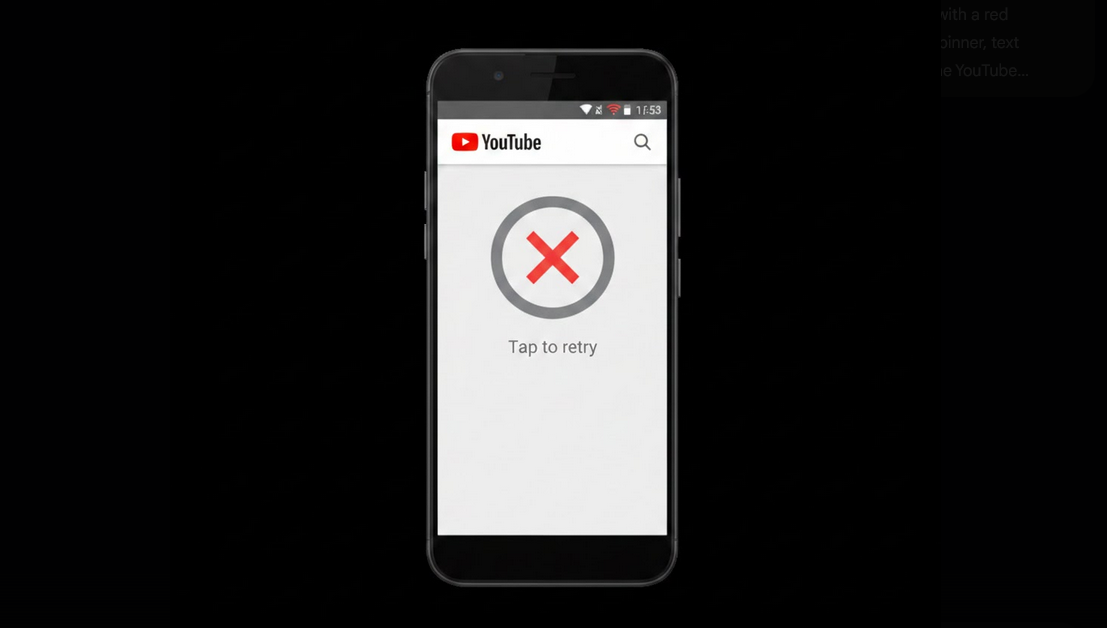
In case you have encountered the trouble of YouTube not loading on Android device, you may see a blank screen, spinning circle icon or an error message. There may be several reasons of YouTube not working – from internet problems to the errors in the application itself. Anyway, this problem can be fixed quite easily.
Causes of YouTube Not Loading on Android
- No Internet Connection: The lack of internet connection (both Wi-Fi and mobile) doesn’t allow to fetch something.
- YouTube Server Issues: Sometimes there occur the troubles with YouTube servers which affect all the users regardless of the location or internet connection.
- Corrupted Cache and App Data: Collected cache and app data become corrupted.
- Outdated Version of YouTube: The usage of outdated YouTube version with some bugs.
- DNS Issue: The settings of your DNS prevent from reaching YouTube servers.
- Active Connection to the Virtual Private Network: Sometimes connection to the active Virtual Private Network blocks access to YouTube.
- Incorrect Date and Time Settings: Incorrect settings of date and time cause SSL certificate error.
- Network Restriction: Your work/school/public Wi-Fi restricts access to YouTube.
How to Solve YouTube Not Loading on Android: Step by Step Guide
You may follow the guide below to solve the problem. Usually the solution is found on one of the first steps.
- Check Your Internet Connection: First of all, you should open your browser and check if it is possible to load any website. If it is not, then the problem is not caused by the app, but by internet connection.
- Toggle the Airplane Mode: You should activate the airplane mode for 10 seconds and then deactivate it.
- Force Close and Reopen the App: Force-close the YouTube app and then reopen it.
- Clear Application Cache: Go to Settings -> Apps -> YouTube -> Storage and press “Clear Cache”.
- Clear Application Data: In case clearing the cache didn’t help you, press the button “Clear Data” in order to reset the app. In this case, you should sign in to the YouTube account once again.
- Update the YouTube Application: Go to Play Store and update the YouTube app if needed.
- Check Your Date and Time Settings: Go to Settings -> Date and Time and enable Automatic Date and Time setting.
- Restart Your Device: Restarting your phone clears cache and resets all network connections.
- Turn Off the Active Virtual Private Network: In case you use the active Virtual Private Network connection, turn it off and then try to access YouTube.
- Change DNS Settings: Use Google DNS or Cloudflare DNS in order to improve connection to the YouTube servers.
How to Determine That YouTube Is Down Globally
Sometimes the problem is not connected to your device, but to the servers of YouTube. Rarest situation when the downtime occurs simultaneously for millions of users all over the world is when YouTube server goes down. In this case, you shouldn’t waste your time trying to solve the problem, as it will be solved by YouTube themselves. Here are the ways to determine if the problem is global.
- DownDetector: Open downdetector.com and look for information about YouTube in the search line.
- Twitter/Social Media: Look for reports about YouTube being down on Twitter or any social media.
- Google Workspace Status: Sometimes Google publishes information about YouTube outages on their workspace status page.
- Alternative: How to Use YouTube Vanced to Access YouTube When Other Solutions Don’t Work
In case of permanent YouTube loading problems, YouTube Vanced appears to be an independent app which allows to access YouTube when other solutions don’t work. Being the independent app, Vanced isn’t affected by such problems as corrupted cache and updates of the original YouTube app. This is the reason why many users prefer to install Vanced as a backup.
You’ll be able to use subscriptions, history, and playlists switching to YouTube Vanced with Vanced MicroG.
What Should You Do to Prevent YouTube Loading Problems in the Future?
- Always Use Updated Apps: Enable the auto-update in order to use the latest version of YouTube.
- Regularly Clear Cache: Regular clearing of cache prevents its overload. Do it once a month.
- There Should Be Enough Storage Space: Make sure there is enough space left on your device to use apps correctly.
- Reliable DNS Settings: Always use Google DNS or Cloudflare DNS for the better connection.
- Regular Network Monitoring: Update the firmware of your Wi-Fi router and restart it sometimes.
- Categories of Users Who Usually Experience YouTube Loading Problems on Android
- Users with Unstable Connection: People with unstable Wi-Fi and mobile internet.
- Owners of Old Devices: People with old Android devices who are unable to use updates of YouTube application.
- People with Restricted Network: Students and employees of companies with restricted Wi-Fi.
- People Using Virtual Private Network: All those people who use Virtual Private Network and have connection issues with YouTube servers.
Conclusion
YouTube not loading on Android is the problem that frustrates many users, but in most cases it is solvable. Checking your internet connection, clearing cache and app data and updating the app help to solve the majority of loading problems. In case of permanent problems, changing DNS settings and using YouTube Vanced as an alternative app allows you to solve the problem.
